10 Best Cloud Security Practices for Small Teams
Use these best cloud security practices to protect websites, VMs, email, and storage while controlling cost and reducing daily admin work as teams grow.
ACMMAX Insights ·
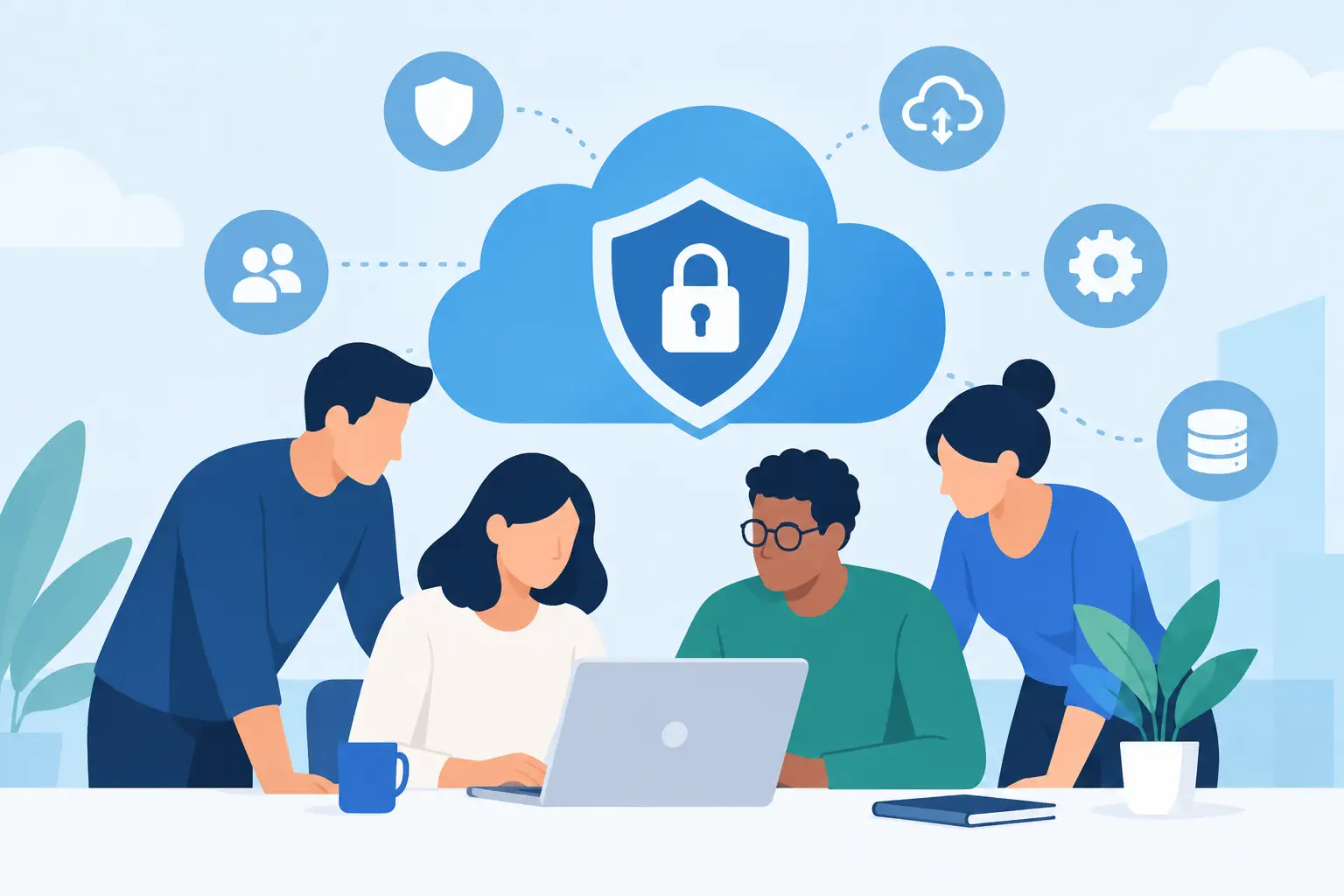
A compromised cloud account rarely starts with a Hollywood-style breach. More often, it starts with a reused password, an old contractor account, a storage bucket left public for a quick test, or a server that missed a security update. The best cloud security practices focus on eliminating these everyday gaps before they become downtime, lost customer trust, or an expensive recovery project.
For small businesses, agencies, and online operators, the goal is not to build an enterprise security department. It is to create a repeatable operating system that protects your websites, cloud VMs, business email, domains, and files without slowing down deployment.
1. Start with identity, not infrastructure
Your cloud environment is only as secure as the accounts that can access it. A well-configured virtual machine can still be taken over if an attacker gets into an administrator account or mailbox.
Require multi-factor authentication for every account with access to your cloud dashboard, domain registrar, email admin panel, source code, and financial billing. An authenticator app or hardware security key is generally stronger than SMS-based verification, though SMS is still better than password-only access.
Use a password manager to create a unique password for every service. This matters most for admin accounts. If a password leaks from an unrelated tool, attackers often try the same credentials on hosting, email, and domain accounts.
Avoid sharing a single owner login with employees, developers, or clients. Create individual accounts and assign only the access each person needs. When someone leaves, remove their access immediately instead of changing one shared password and hoping every copy disappears.
2. Apply least privilege before granting convenience
Fast access helps teams ship work. Unlimited access creates unnecessary exposure. Least privilege means each user, application, and automated process receives only the permissions required for its task.
A freelance designer may need WordPress access but not cloud billing permissions. A developer may need to deploy to a staging server but not delete production backups. A marketing tool may need permission to send email through an approved service, not access to your full inbox.
Review permissions whenever a project changes. Temporary access should have an expiration date, especially for agencies, contractors, and support providers. This small discipline reduces the impact of a compromised account because an attacker cannot automatically reach every system you operate.
3. Separate production from testing
Never treat a test environment as harmless. Staging sites commonly contain copied customer data, API keys, plugins, and configuration files. They are also more likely to be overlooked during updates.
Use separate cloud projects, servers, databases, or at minimum separate credentials for production and non-production work. Keep real customer data out of testing whenever possible. If you need realistic data for development, anonymize it first.
The trade-off is a little more setup. The payoff is substantial: a risky plugin experiment, an incorrect deployment, or a compromised staging account is less likely to affect the site or application that produces revenue.
4. Patch systems on a schedule you can maintain
Unpatched software remains one of the most practical routes into cloud systems. Operating systems, WordPress cores, themes, plugins, control panels, databases, and application dependencies all require attention.
For managed services, confirm what the provider updates automatically and what remains your responsibility. For cloud VMs, establish a maintenance schedule for operating system updates and security patches. Critical vulnerabilities may require action outside the normal schedule.
Do not update production blindly. Take a backup, test major changes in staging, and define a rollback plan. For a simple business website, automatic minor updates may be sensible. For a customized store or client platform, controlled updates with testing may be the safer option.
5. Lock down network access to cloud VMs
A public IP address does not mean every service on the server should be public. Only expose ports that are necessary for your website or application to function. For many web servers, that means allowing web traffic while restricting administrative services such as SSH or remote desktop.
Use firewall rules to limit management access to known IP addresses when your team has stable locations. If your team works from changing networks, use a secure VPN or a managed access method instead of opening administrative ports to the entire internet.
Disable password-based SSH login when practical and use SSH keys. Remove default accounts, change default ports only as a supplemental measure, and block root login where your operating system supports a safer admin workflow. These steps will not replace patching or MFA, but they significantly reduce automated attack noise.
6. Protect object storage from accidental exposure
Object storage is excellent for backups, media libraries, documents, and application assets. It is also easy to misconfigure when teams prioritize a fast launch over access controls.
Keep buckets private by default. Make individual objects public only when they are intentionally meant for public delivery, such as website images. For customer documents, exports, backups, and internal files, use authenticated access or time-limited signed URLs rather than a permanently public bucket.
Encrypt sensitive data in transit and at rest. Also treat access keys like passwords: store them in secure environment variables or a secrets manager, never inside public repositories, browser code, screenshots, or support tickets. Rotate keys when a team member leaves, an application changes, or you suspect exposure.
7. Secure email and domains as critical infrastructure
Business email is often the reset point for every other account. If an attacker controls an email inbox, they may reset cloud passwords, intercept invoices, impersonate executives, or redirect customers.
Use MFA for mailboxes, disable legacy authentication where possible, and watch for suspicious forwarding rules. Train staff to verify payment changes and domain-related requests through a second channel. Phishing defenses work best when technology and process support each other.
Your domain account deserves the same protection as a production server. Turn on domain transfer locks, use unique credentials, protect the registrar email address, and limit who can change DNS records. A domain takeover can redirect traffic, disrupt email, and damage a brand within minutes.
8. Back up for recovery, not just compliance
A backup that has never been restored is an assumption, not a recovery plan. Keep automated backups for websites, databases, VM snapshots, and important object storage data. The appropriate retention period depends on your business, but short retention can leave you exposed to malware that sits unnoticed for weeks.
Follow the practical version of the 3-2-1 approach: maintain multiple copies, use different storage locations, and keep at least one copy isolated from the primary environment. If ransomware reaches both your server and a backup drive mounted to it, the backup may be unusable.
Test restoration regularly. Restore a WordPress site to a temporary environment, recover a database, or rebuild a VM from documented steps. Measure how long it takes. Recovery time is a business decision, not just a technical metric.
9. Monitor the events that matter
You do not need a massive security operations center to gain useful visibility. Start by enabling activity logs, login alerts, billing alerts, backup failure notifications, and server monitoring. Know who changed DNS, created access keys, modified firewall rules, or logged in from a new location.
Define a short escalation process before an incident happens. Decide who receives alerts, who can disable access, where credentials are stored, and how customers will be informed if service is affected. An agency should also define these responsibilities separately for each client environment.
ACMMAX users can simplify this operating model by keeping core services such as cloud compute, hosting, domains, email, and storage under one account structure. Centralization does not remove the need for security controls, but it makes ownership, access reviews, and incident response easier to manage.
10. Make security part of every launch checklist
Security becomes reliable when it is built into normal work. Add a short checklist to every website launch, VM deployment, domain transfer, employee onboarding, and client handoff.
Before going live, confirm MFA is enabled, unnecessary accounts are removed, software is updated, backups are running, storage permissions are reviewed, and alerts reach the right person. For higher-risk systems, include a restore test and a second-person review of access permissions.
Best cloud security practices work when they are repeatable
The strongest security plan is not the longest policy document. It is the set of controls your team actually follows while moving quickly: protected identities, limited permissions, current software, private data, tested backups, and clear ownership. Build those habits into each deployment, and security becomes a practical advantage rather than a source of friction.